How each part of Mendlet works.
Three portals, one repair. Pick who you are.
Report a repair in a minute, then watch it happen.
No app to install, no password to remember. Your letting agent gives you the address; the rest is a few taps.
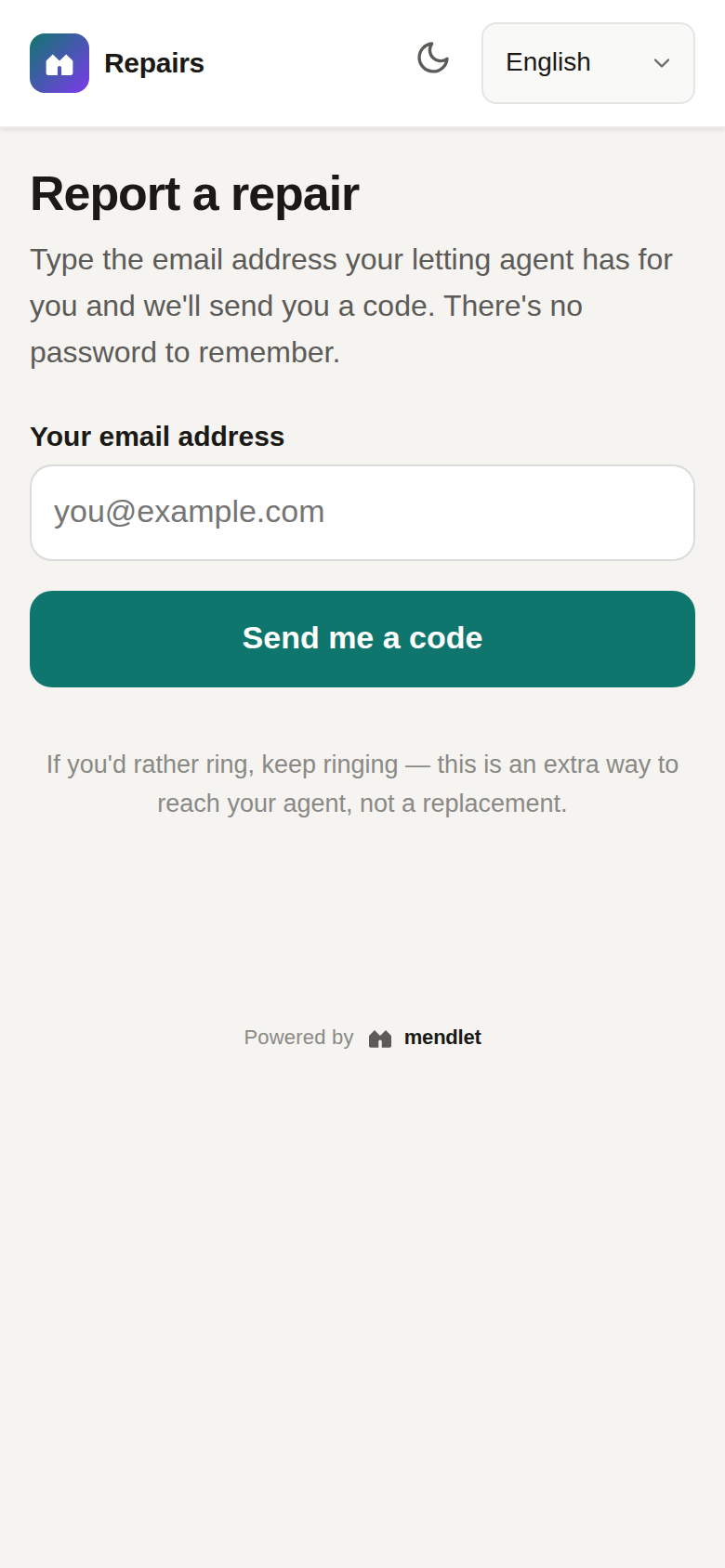
Sign in with your email
Type the email address your agent has for you and we send a six-digit code. Enter the code and you are in — there is no password. If you rent more than one property from the same agent, you pick which one you mean.
If your agent does not have your email on file, the portal cannot find you. Ring them and ask them to add it.
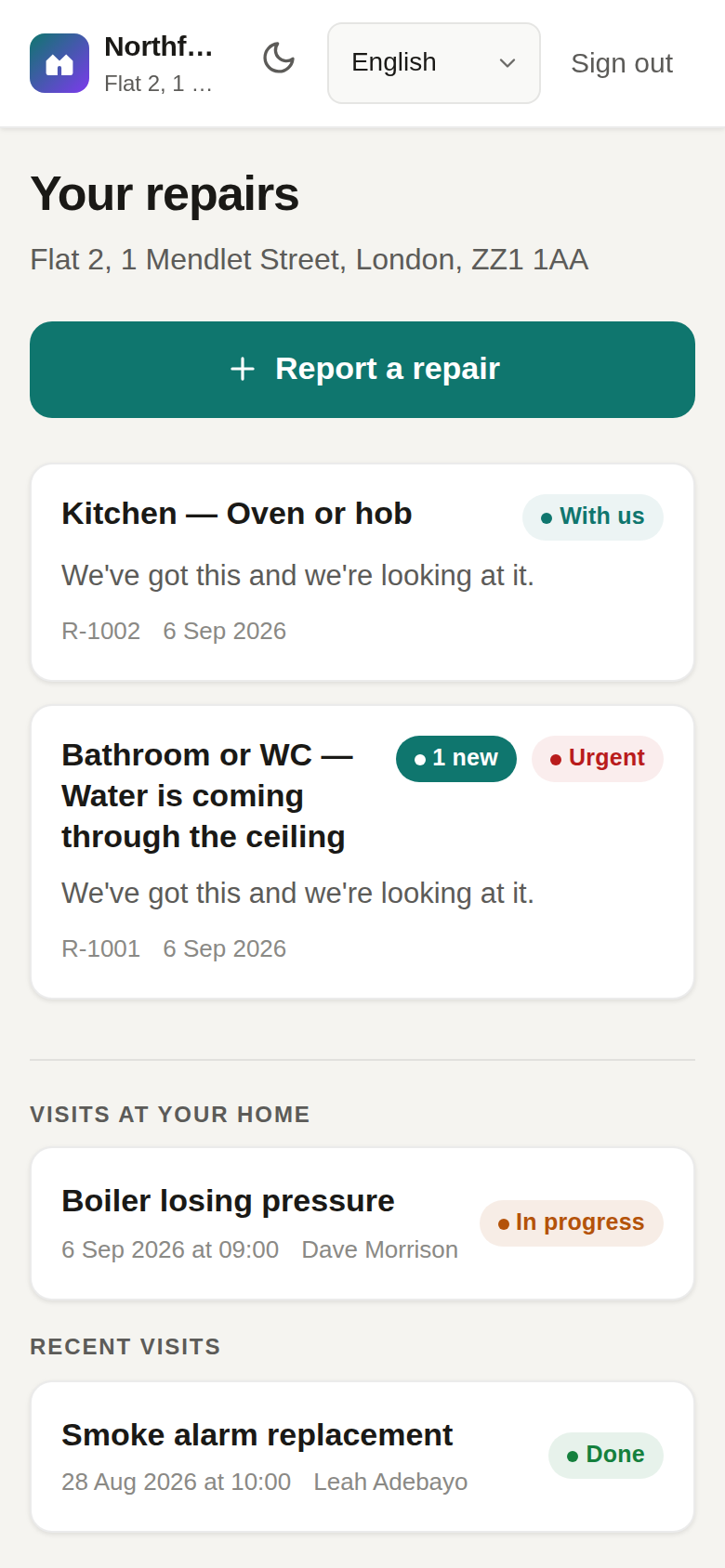
See everything in one place
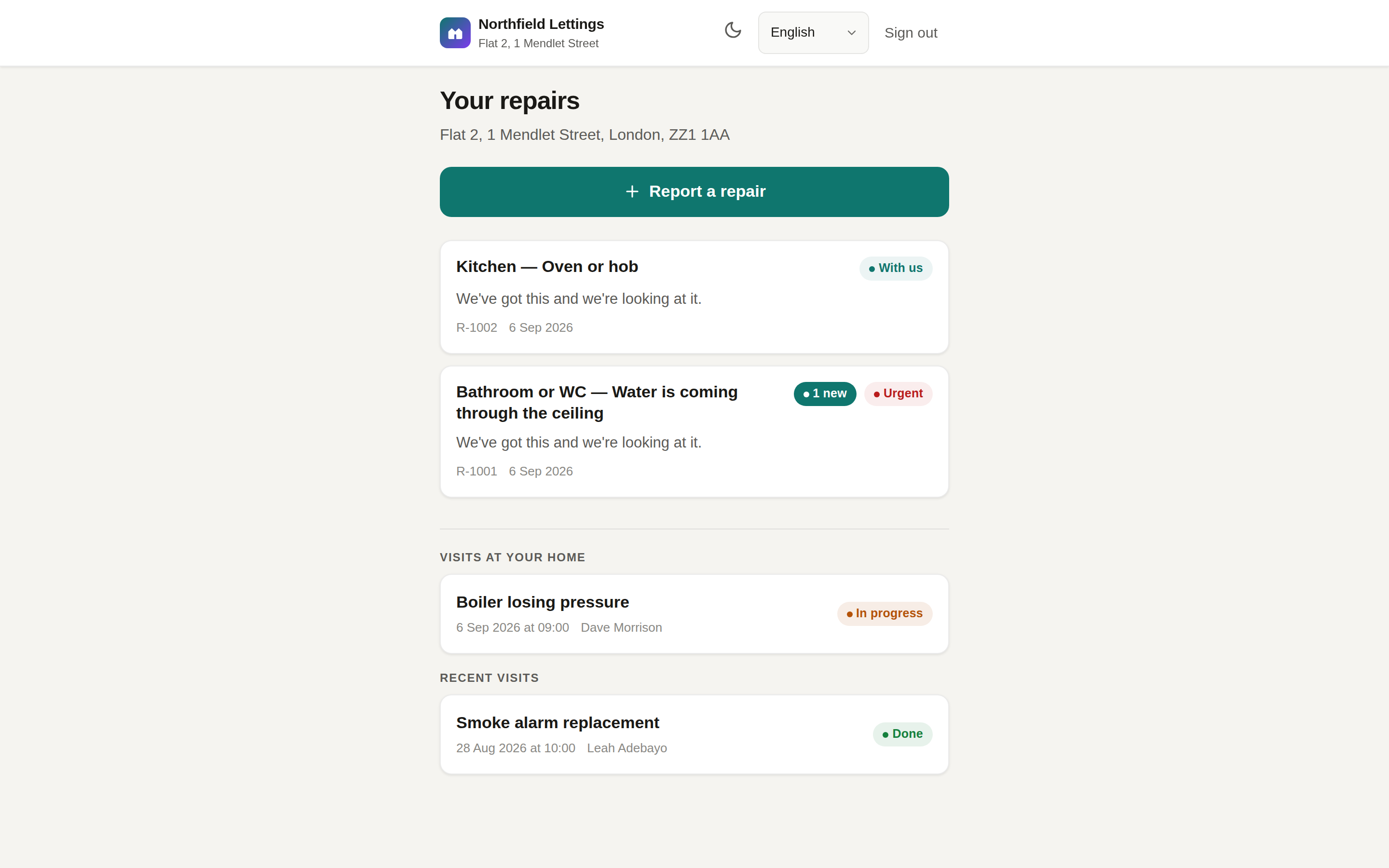
Your home screen lists the repairs you have reported and where each one has got to, the visits booked at your home with the date, time and the contractor's name, and how to reach the office — including their emergency numbers and opening hours.
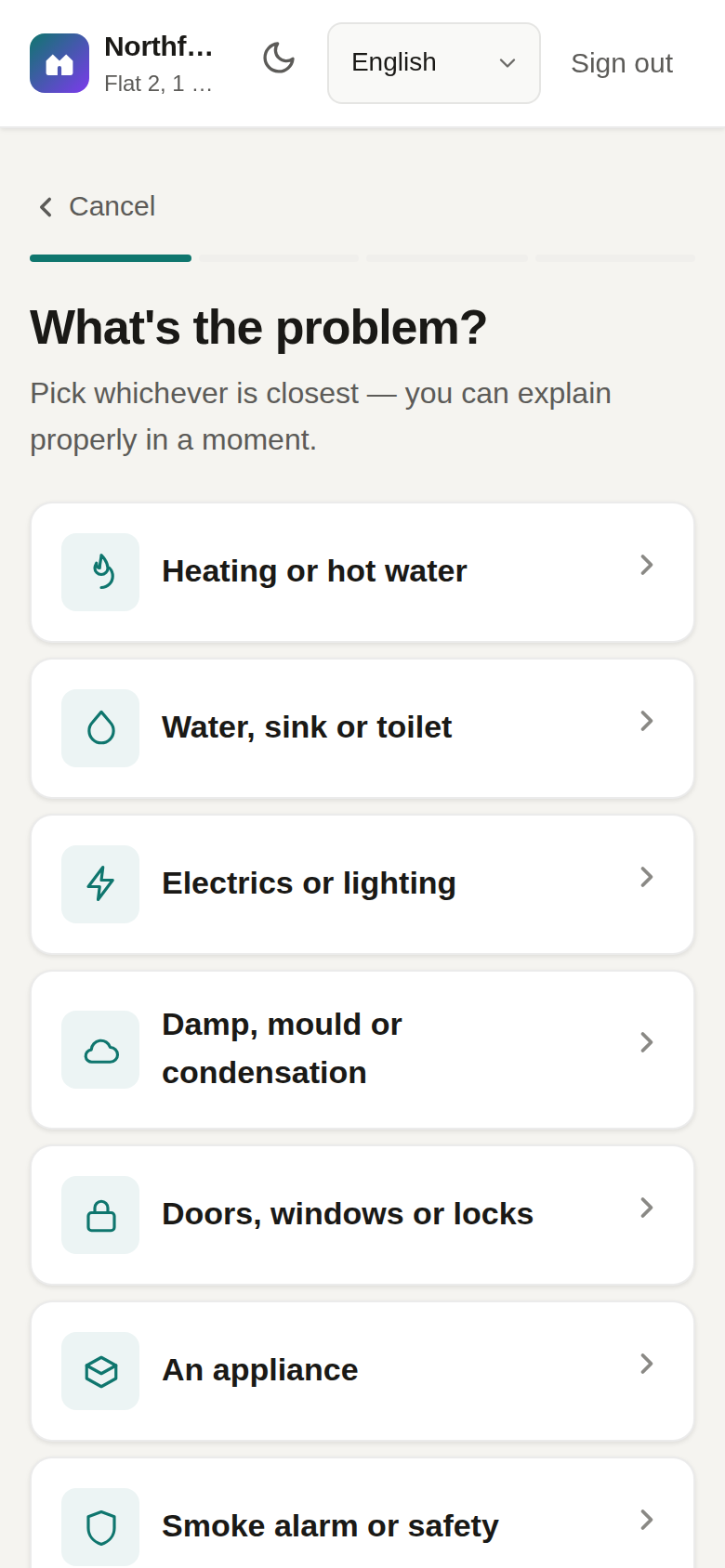
Say what is wrong by picking, not typing
Tap Report a repair, then choose what kind of problem it is, what exactly is happening, and which room. Each choice narrows the next, so “Heating or hot water → No hot water → Bathroom” takes three taps.
Some problems ask one more question — is water coming through a light fitting? can you smell gas? — because the answer changes how urgent it is. Then add a few words of your own and, if you can, a photo or a short video.
It goes straight to the office, sorted by urgency
The moment you send it, the office sees it — flagged as routine, urgent or an emergency from what you told us, so the serious things are looked at first. If the same problem has already been reported at your address, the portal tells you and lets you add to it rather than raise a duplicate.
If what you describe is dangerous — a gas smell, water on electrics — you are shown the emergency numbers to ring right now, before anything else.
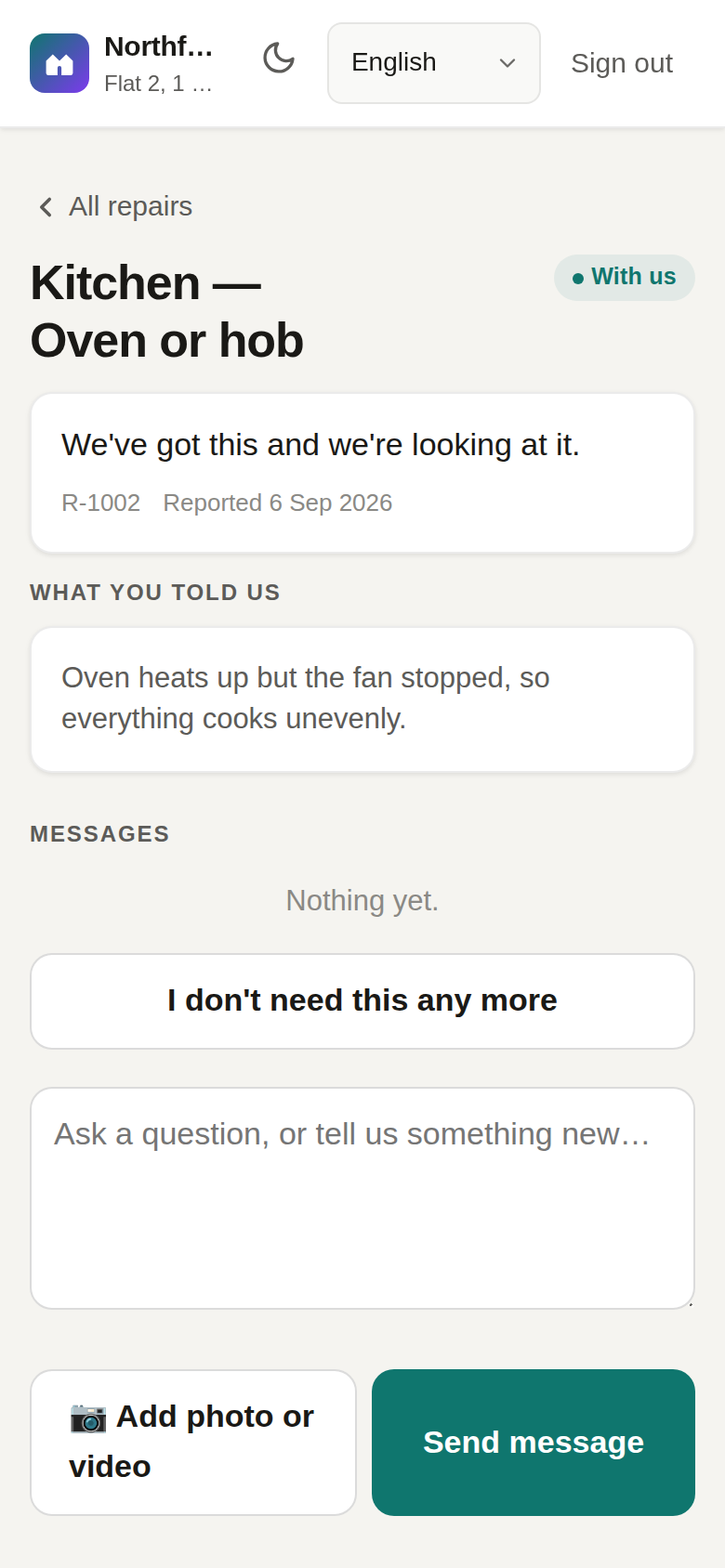
Talk to the office in the report itself
Open any report to see its history and message the office directly. Add another photo, say when you are home, ask what is happening. Their replies arrive here and by email.
When a visit is booked you get a reminder the day before and again on the morning. When the work is done, the portal asks: is this sorted now? One tap to confirm — or to say it is not, which reopens it.
Tenants often ask
Is this instead of ringing my agent?
No. It is an extra way to reach them, with the advantage that everything is written down and you can see what happened. For anything dangerous, ring — the portal shows you the numbers.
Who can see what I write?
Your letting agent or landlord's office, and the contractor they assign to the job (they see the repair, not your whole history). Mendlet staff do not read your reports. See the privacy notice.
I started a report and got interrupted.
It is saved on your phone. Next time you open the portal it offers to carry on where you left off.
Can I report something in the hallway or bin store?
Yes — when you pick the room there is a communal area option for shared parts of the building.
Your day, your jobs, your photos — from the van.
Every job an agent gives you, in one list, with the address, the tenant's number, what is wrong and when you are expected. Update it on site and the office and tenant both know.
Sign in once, or open a job from a link
Your agent sets you up with an email address and password, or sends you a link straight to a job — the link opens that job without a sign-in. If you work for more than one agency on Mendlet, one sign-in shows you all of them and you switch between companies from the top of the screen.
Today first, then everything else
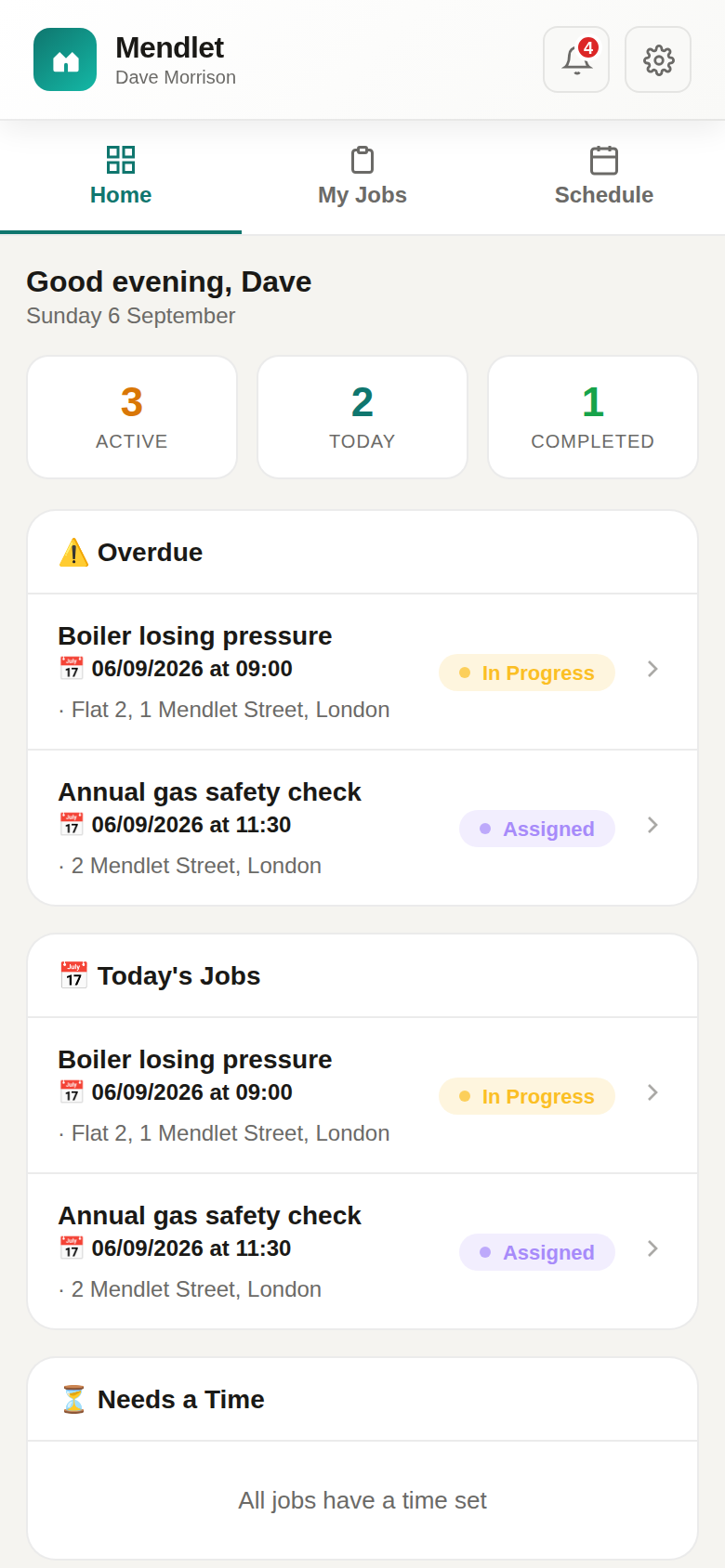
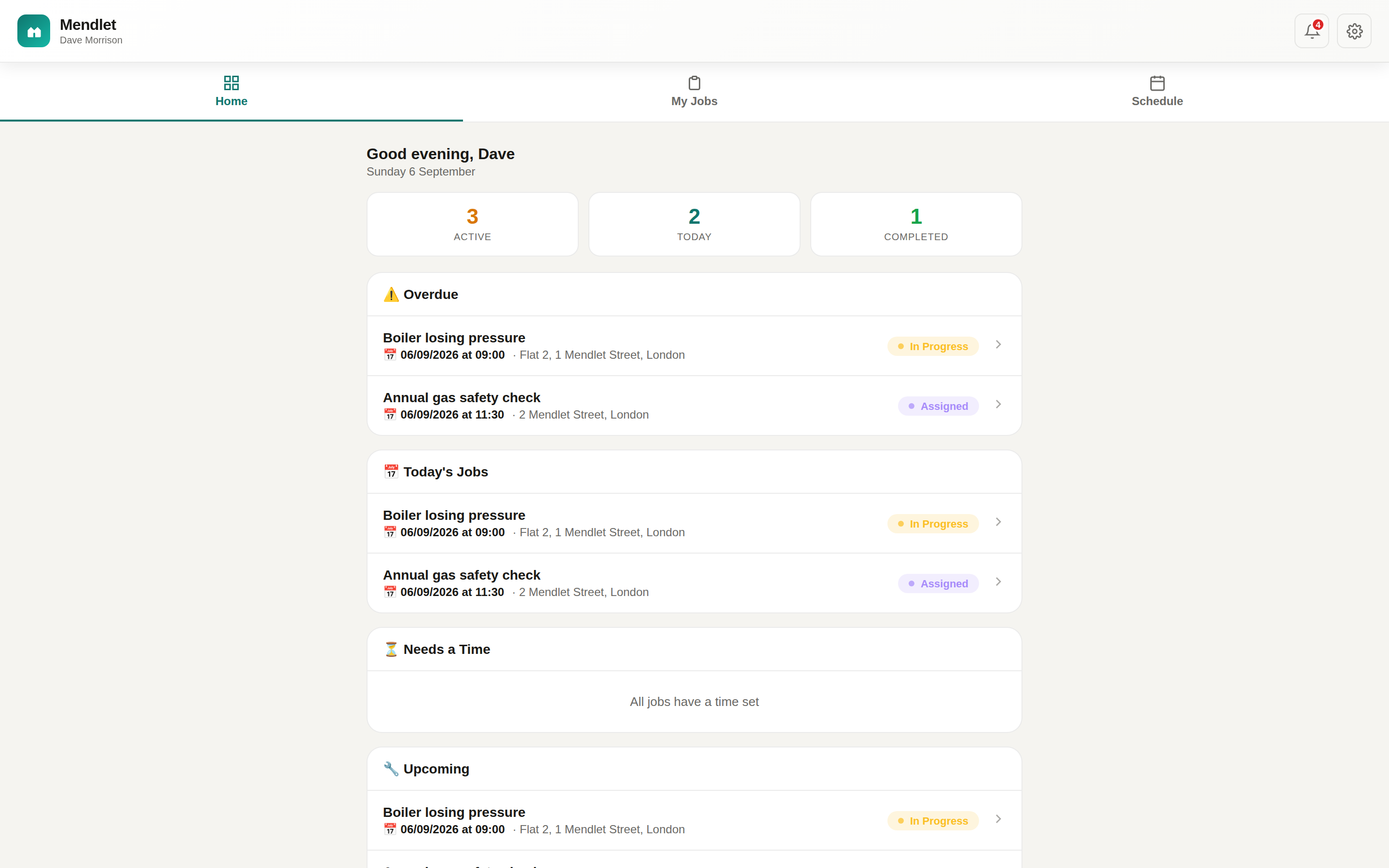
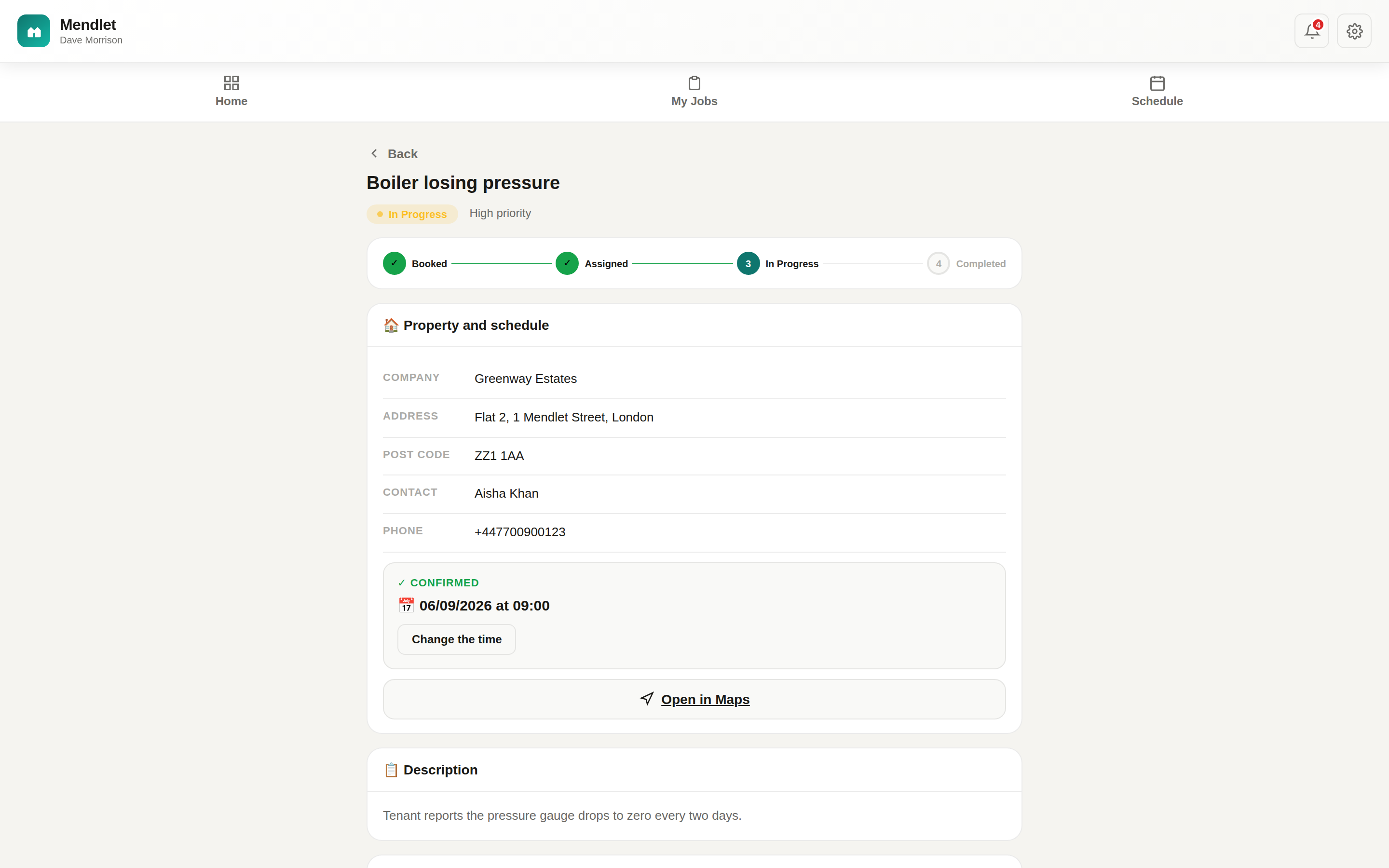
The home screen is your day: anything overdue at the top in amber, then today's visits in time order, then jobs that still need a time, then what is coming up. My Jobs lists everything you have been given and lets you filter by status; Schedule shows the week.
Open a job and everything is there
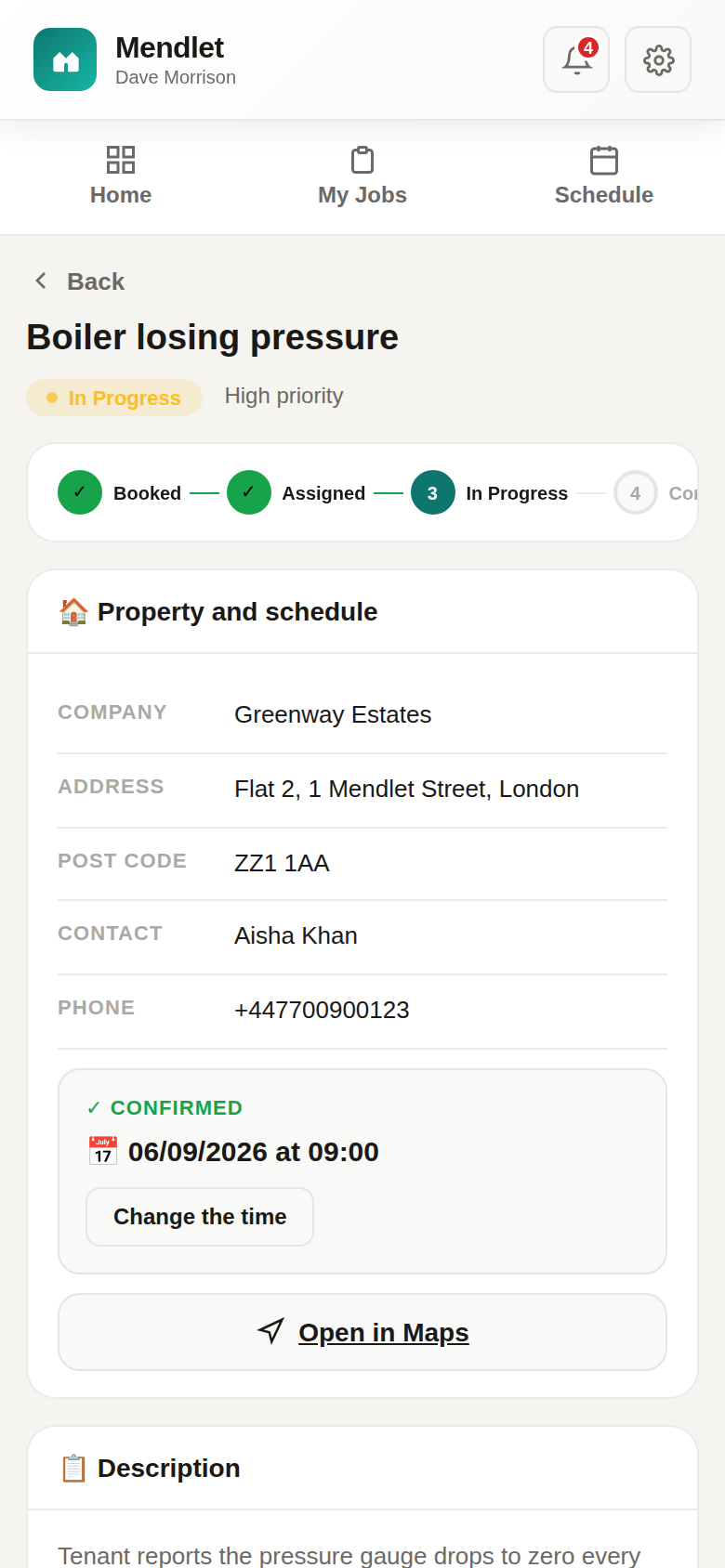
The property, the tenant's name and phone number, a button that opens the address in your maps app, what the office wrote, what the tenant reported, and any photos they sent. If the time has not been set, set it here and the tenant is told. If you need to move it, change it here — the office is told.
You can give a set time or a slot — morning, afternoon, evening, all day, or one you choose. A slot is often the honest answer, and the tenant is told exactly what you chose: “between 8am and 12pm”, not a minute you would have to keep.
Update it on site, with photos
Change the status as you go — In progress when you arrive, Completed when you leave. Add a note about what you found and what you did, and attach photos or a short video. Each update goes to the office; the completion goes to the tenant too, so nobody has to ring anybody.
Start the day with a list in your inbox
Every morning except Saturday you get one email with your visits for the day — addresses, times, what each job is. If you would rather not, you can switch it off in the portal (unless the agency has chosen to keep it on for everyone).
The bell at the top shows anything that changed since you last looked: a job added, a time moved, a note from the office.
Every repair, every property, every contractor — one screen.
This is an overview. The full guide to every setting is inside the office app, under Help, where the people who need it are.
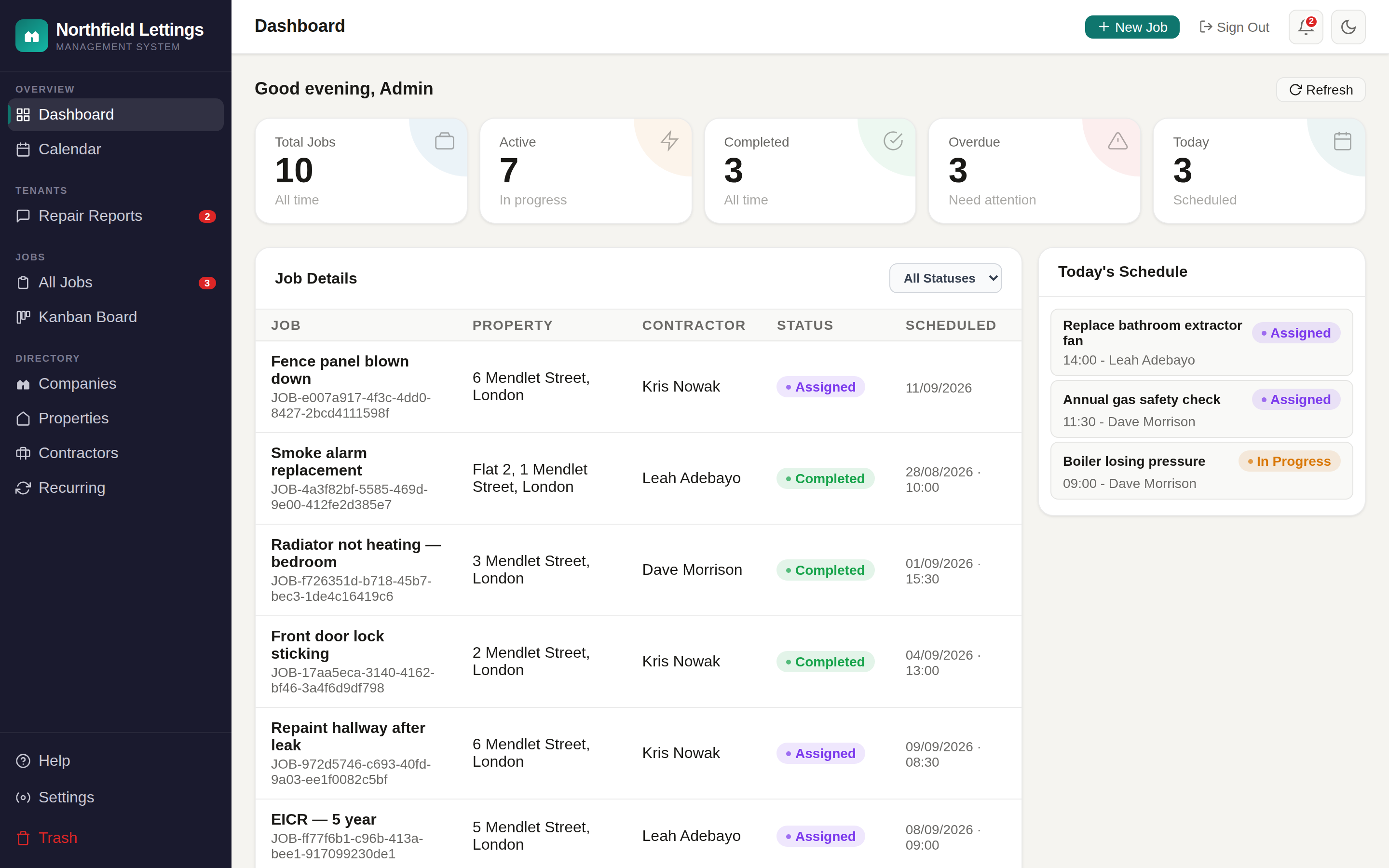
Dashboard
What is happening now: open and overdue jobs, today's visits, tenant reports waiting for a reply, and the figures for the month.
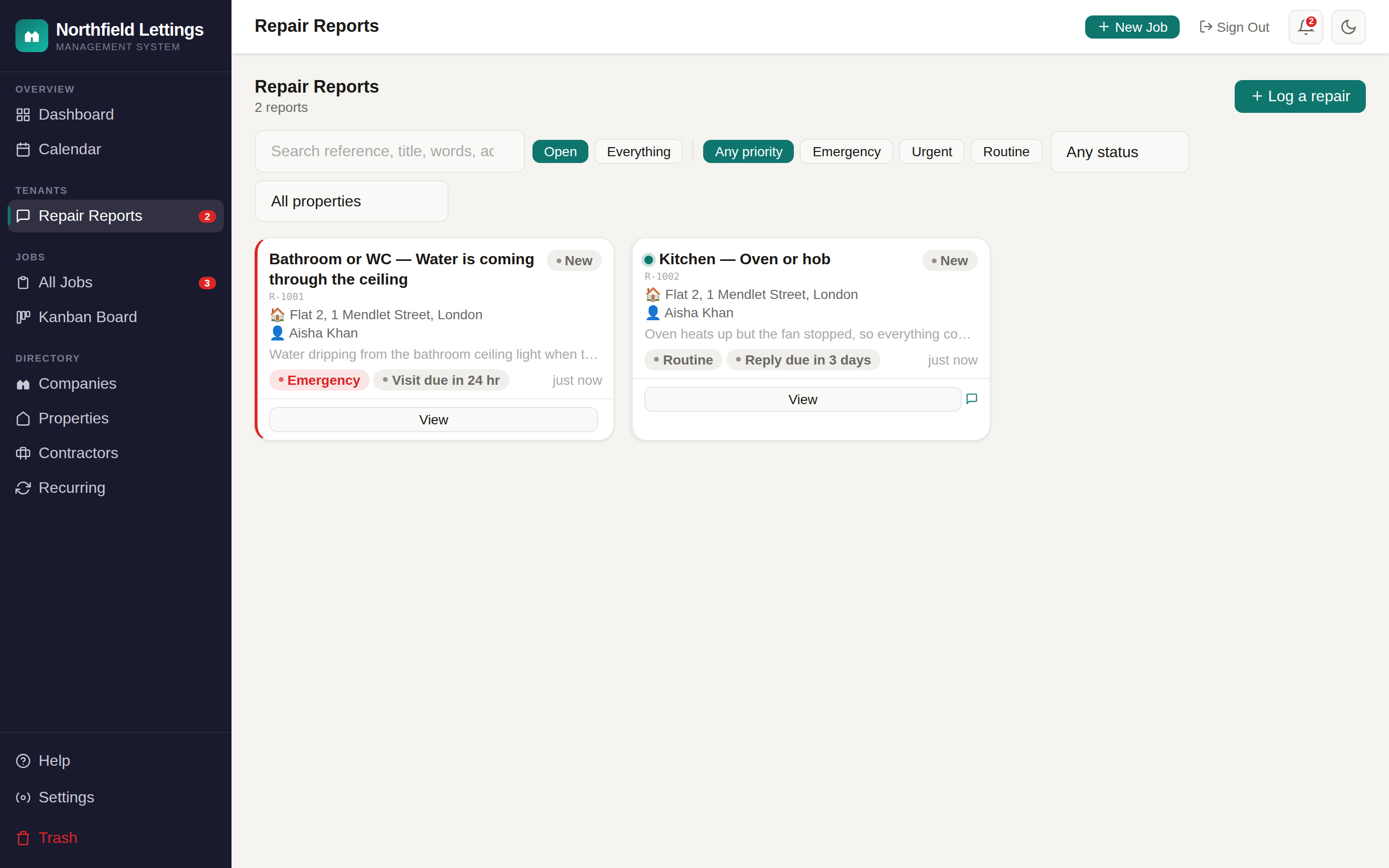
Repair reports
Everything tenants have sent, newest first, badged by urgency. Open one to read it, reply, ask a question, and turn it into a job for a contractor in one step. The report and the job stay linked, so the tenant follows the job's progress without you copying anything.
Jobs, Kanban and Calendar
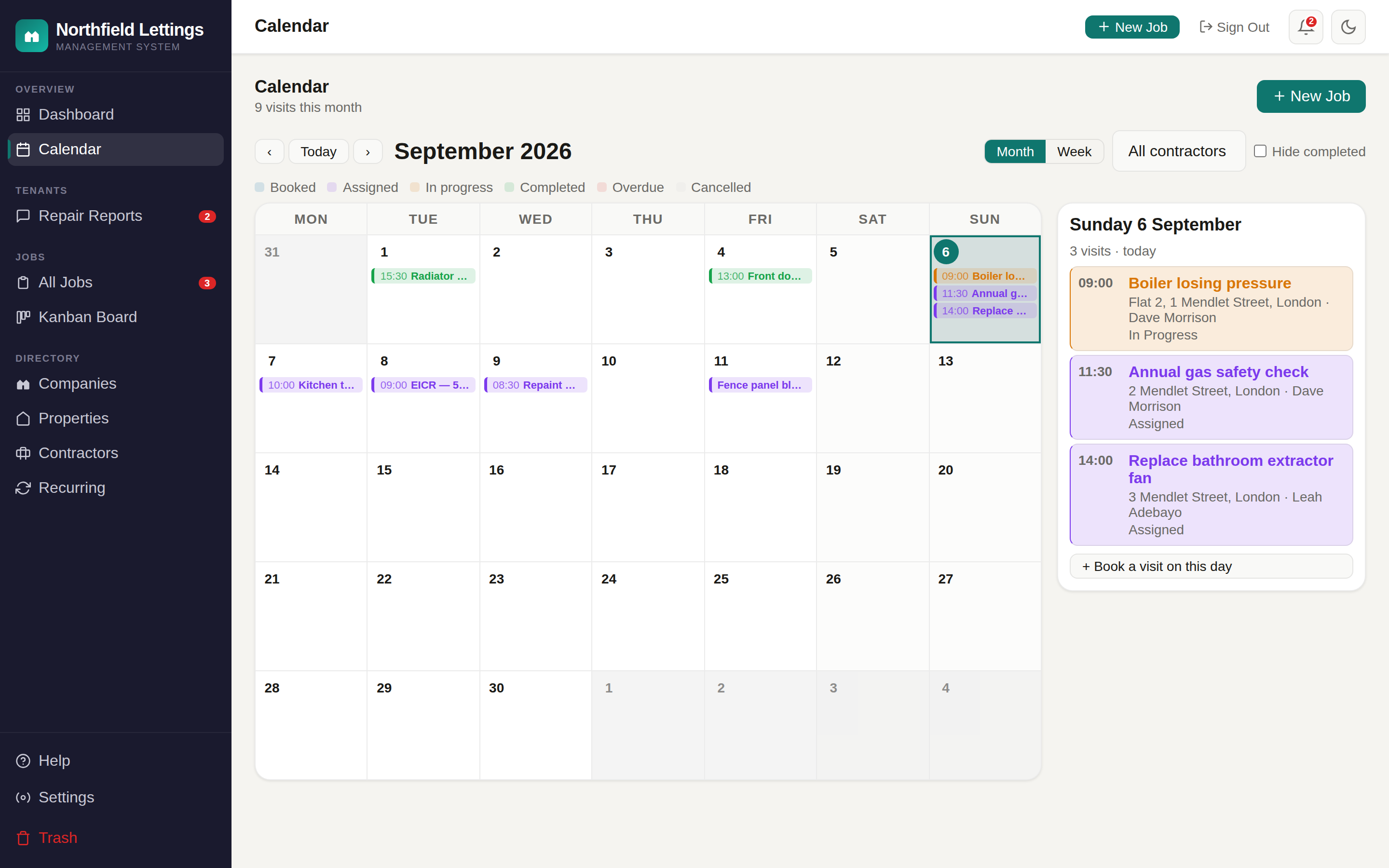
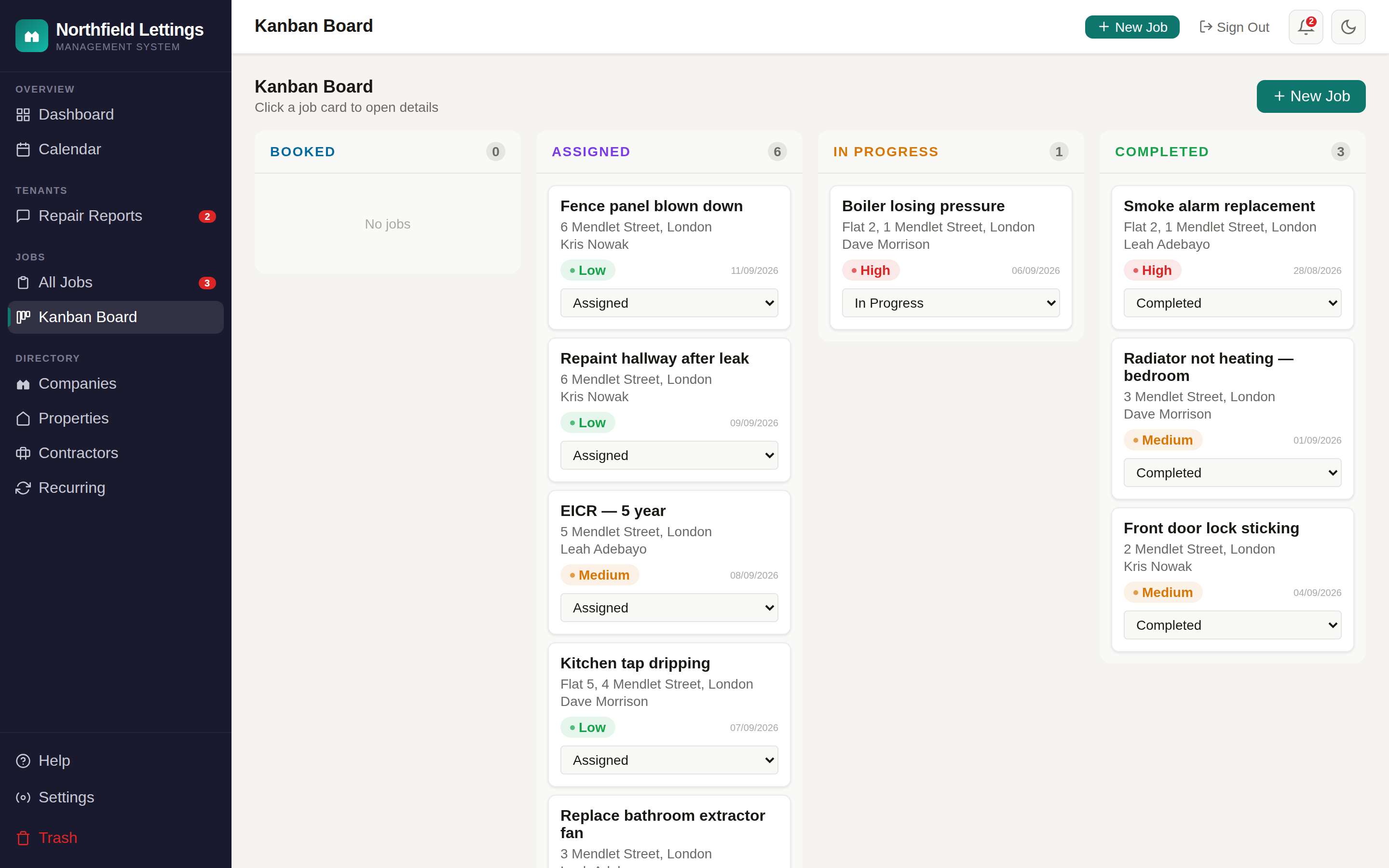
The same jobs three ways: a filterable table, a board you drag cards across (or move them with a menu, on a tablet), and a month or week calendar by contractor. Book a job from any of them.
Properties, companies and tenancies
Every property with its landlord, its tenants and its history. Import your portfolio from a spreadsheet in one go. The map pin is placed for you from the address and marked exact or approximate, so nobody is sent to the wrong end of a road.
Contractors
Who you use, what they do, and every job you have given them. Give them a password for the portal, or send them a link to a single job.
Recurring work
Gas safety certificates, alarm tests, communal cleans — set the rule once and the visits are created ahead of time, assigned, and the tenant reminded.
Notifications
Choose, for the whole company, which events send an email or a text — to tenants, to contractors, to the office — and set reminder timings. Each office user chooses which alerts they personally receive.
Response times
How quickly you mean to reply to a tenant, and how quickly you mean to have somebody there, for each of emergency, urgent and routine. Every report shows how long is left and turns red when it has run out. Nothing pauses by itself: press Pause on the report and say why — a reason is required, because a pause with no reason is a way of making a dashboard look better — and the clock stops while you are waiting on the tenant, until you press Resume. Sensible times are set for you — change them in Settings. They are your targets, not a legal standard: a social landlord should set them to match Awaab’s Law.
Settings
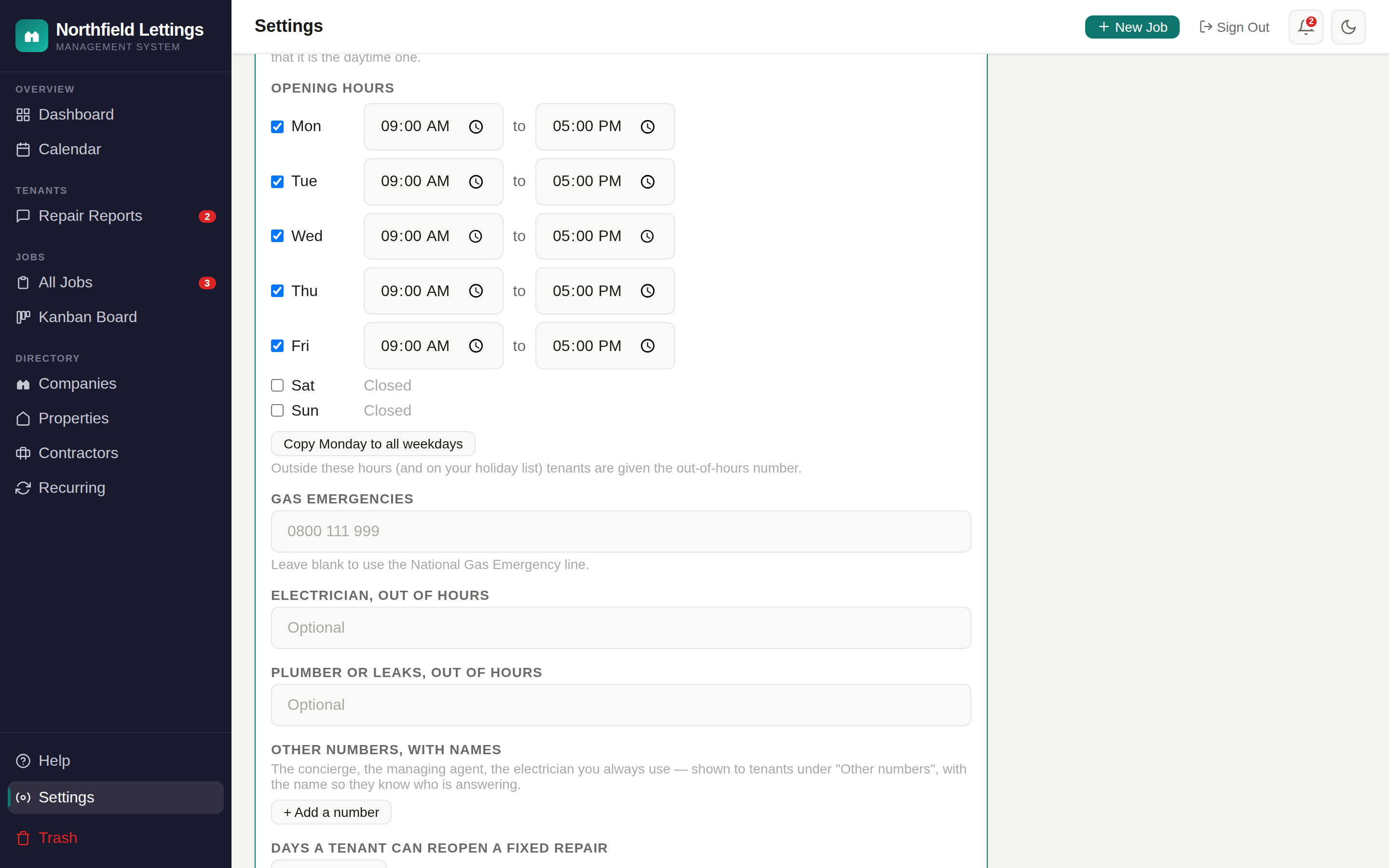
Your company details and what tenants see, your team and their roles, emergency and office numbers, opening hours, bank holidays, response times, your usage, and importing and exporting.
Getting your data out
Settings → Data export, and only an account owner can do it, because it is everybody’s details in one file. Two downloads: a spreadsheet with a sheet for each kind of record — properties, landlords, tenancies, jobs and their whole history, recurring visits, contractors, your team, tenant reports, every message and every event on them, inspections, reminders sent, the do-not-contact list, your settings, the activity log, erasure receipts — and a JSON file that is the same thing exactly, every column of every table, nothing shortened, for a solicitor or whatever you move to next. Passwords are the one thing never in it. The photographs stay in the app and are listed by name.
Removing someone, and closing the account
If a tenant asks you to delete their information, an owner can erase it in one action from their tenancy card (“Erase their details”): name, email, phone and access notes go, from the tenancy and from the property’s contact details; their messages and photographs go, from their own reports and from any they joined in on; their words and pictures go from the jobs raised from their reports; and the repair history stays with the person taken out of it — because the record that a leak was fixed is the landlord’s. Closing the account sets a date thirty days ahead. Nothing changes until then — you can still work, still export, and undo it from the same screen — and on that day every property, tenancy, job, message, inspection and photograph is destroyed for good. Export first.
Want to see it with your own portfolio? Get in touch and we will set up a walkthrough — or create a company and try it.